
How to Find and Delete Unused iPhone Apps
iUninstall finds the iPhone apps that you have not opened in weeks. Your iPhone can share its Screen Time information with your Mac. iUninstall reads it on your Mac and lists the apps with no recorded use, for example in the filter “Not opened in 7 days”. Select them, confirm once, and delete them together. You can also delete apps without Screen Time.
- Time
- A few minutes to set up, one time. The first information can take some hours
- You need
- A Mac, Screen Time sharing on, the same Apple Account on the iPhone and the Mac
- Cost
- Free scan · $9.99 once to delete
Set it up one time
- Share Screen Time from the iPhone. On your iPhone, open Settings › Screen Time › Manage Screen Time, and turn on Share Across Devices.
- Share Screen Time on the Mac. On your Mac, open System Settings › Screen Time, and turn on Share across devices. The iPhone and the Mac must use the same Apple Account.
- Allow Full Disk Access. Open iUninstall. The setup guide asks for Full Disk Access, because macOS keeps Screen Time information private. Turn on iUninstall in System Settings › Privacy & Security › Full Disk Access.
- Connect and scan. Connect your iPhone with a cable and scan. The first Screen Time information can take some hours to arrive on the Mac. You can select and delete apps while you wait.
iUninstall now shows when you last opened your apps. Apple keeps about 4 weeks of this information. iUninstall keeps its own copy on your Mac, so the history grows past 4 weeks when you open iUninstall at least once every 4 weeks. When iUninstall does not know, it says so.
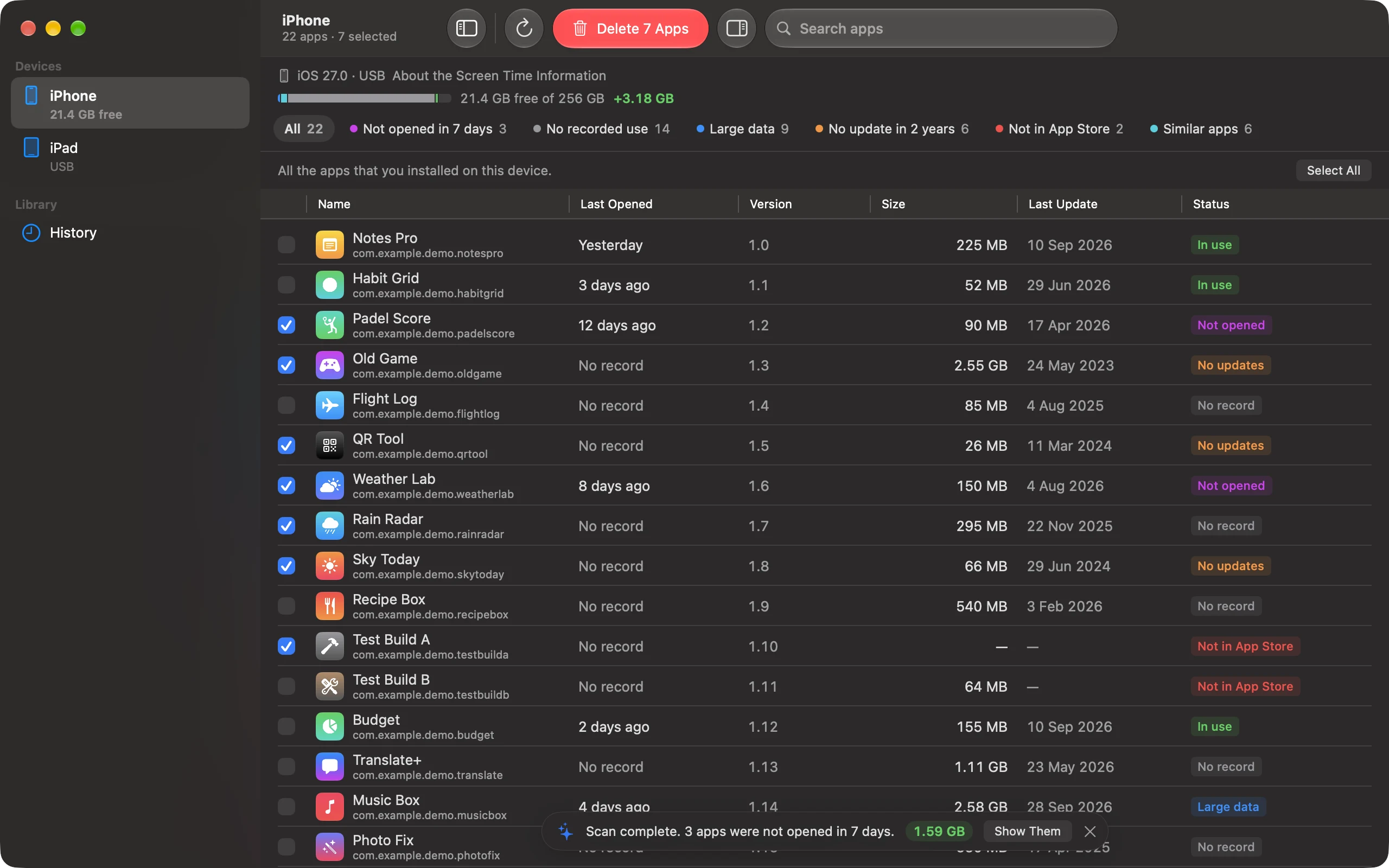
The filters that find unused apps
- Not opened in N days: apps with no use in that period. iUninstall picks the period that the Screen Time information can cover, for example 7, 30, or 90 days.
- No recorded use: apps with no use in the shared Screen Time information. iUninstall does not call them "never used", because the information covers only about 4 weeks.
- Large data: the apps that use the most space, so you get the most space back.
Can the iPhone show unused apps?
Screen Time on the iPhone shows the apps you use most. A list of the apps that you do not open is harder to get. The iPhone can also offload unused apps automatically when the storage is low, but you cannot choose which apps it removes, and it keeps their data (Apple iPhone User Guide). iUninstall shows you the list, and you decide.
On a Windows PC
The iPhone shares its Screen Time information only with a Mac, so iUninstall for Windows has no last-opened dates. It still finds apps to remove: the filters “Large data”, “No update in N years”, “Not in App Store”, and “Similar apps” use the app sizes and the public App Store information. Your first 2 deletions on Windows are free.
No Screen Time? No problem.
Screen Time is optional. Without it, iUninstall still shows all your apps with their sizes, and you select the apps yourself. The scan is free. Deleting costs $9.99, one time.
Frequently asked questions
Do I need Screen Time to delete apps?
No. Screen Time only adds the last-opened dates. Without it, iUninstall still lists all your apps with their sizes, and you can delete any of them.
How far back can iUninstall see?
Apple keeps about 4 weeks of Screen Time information. iUninstall keeps its own copy on your Mac, so the history grows past 4 weeks when you open iUninstall at least once every 4 weeks.
Does this work on a Windows PC?
The last-opened dates need a Mac, because the iPhone shares its Screen Time information only with a Mac. iUninstall for Windows shows all your apps with their sizes. Its filters find large apps, apps with no update in years, apps that are not in the App Store, and similar apps.
Does my Screen Time information leave my Mac?
No. iUninstall reads it on your Mac and keeps it on your Mac. See the privacy policy.
Keep reading
Is There a Way to Delete Apps on iPhone Quickly?
Yes. Delete many iPhone apps in one batch from your Mac or Windows PC, with one confirmation. Or delete one app in four taps on the iPhone.
The Most Effective Way to Delete Apps on iPhone
Five ways to delete iPhone apps, compared. For a real cleanup, iUninstall shows the size of each app (and the last use, on a Mac) and deletes them in one batch.
How Do I Delete Multiple Apps at Once on iPhone?
Select some or all of your iPhone apps on your Mac or Windows PC, and delete them in one batch with one confirmation.