
How Do I Delete Multiple Apps at Once on iPhone?
Yes, you can delete multiple iPhone apps at once with iUninstall. iUninstall is an iPhone app uninstaller that runs on your Mac or Windows PC. Connect your iPhone to your computer with a cable, select the apps that you want to remove, and confirm one time. iUninstall deletes the apps one after the other and checks that each app is gone.
- Time
- A few minutes to select. Then the batch runs without you
- You need
- A Mac (macOS 15 Sequoia or later) or a Windows PC (Windows 10 (1809) or later, or Windows 11), your iPhone, a USB cable
- Cost
- Free scan · $9.99 once to delete
How to delete multiple iPhone apps with iUninstall
- Download iUninstall. Open it on your Mac (macOS 15 Sequoia or later) or your Windows PC (Windows 10 (1809) or later, or Windows 11).
- Connect your iPhone. Use a USB cable. If the iPhone asks "Trust This Computer?", tap Trust and enter your passcode.
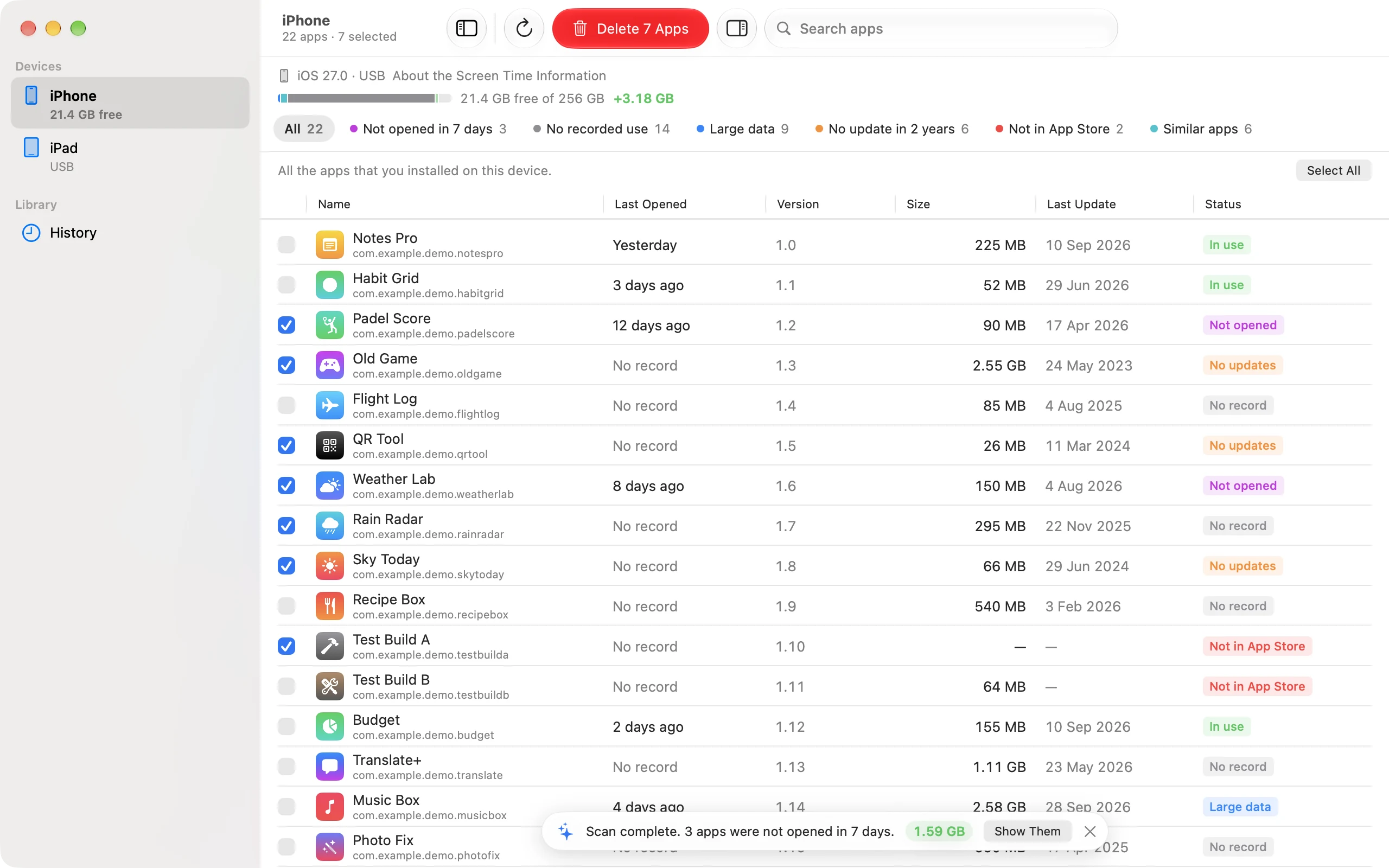
- Let iUninstall scan. It shows every app that you installed, with its icon, its size, and its data size. You do not need Screen Time for this.
- Select the apps. Tick each app that you want to delete, or use a filter such as "Large data" and click Select All.
- Click Delete and confirm. iUninstall shows the exact list one more time. Then it deletes the apps one after the other.
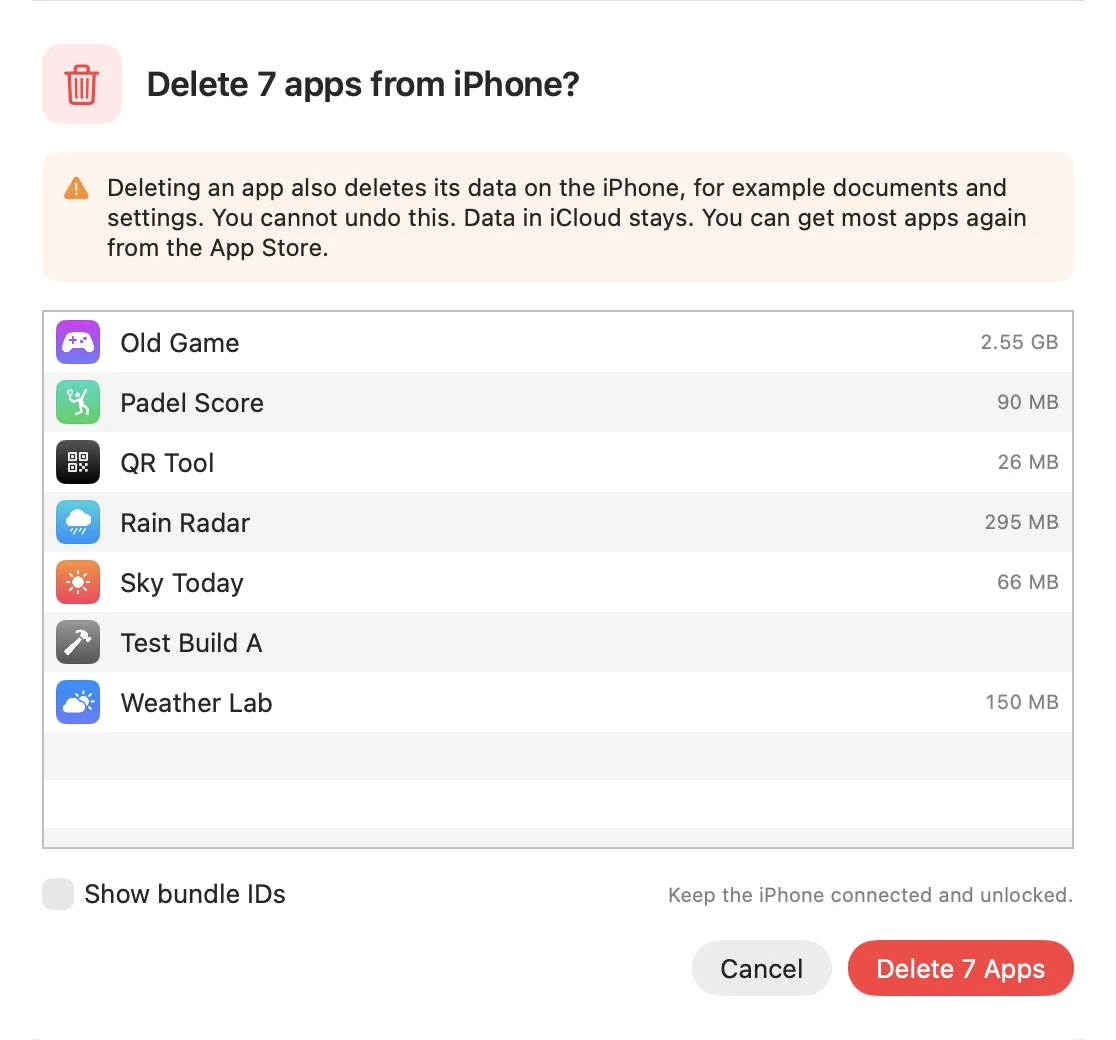
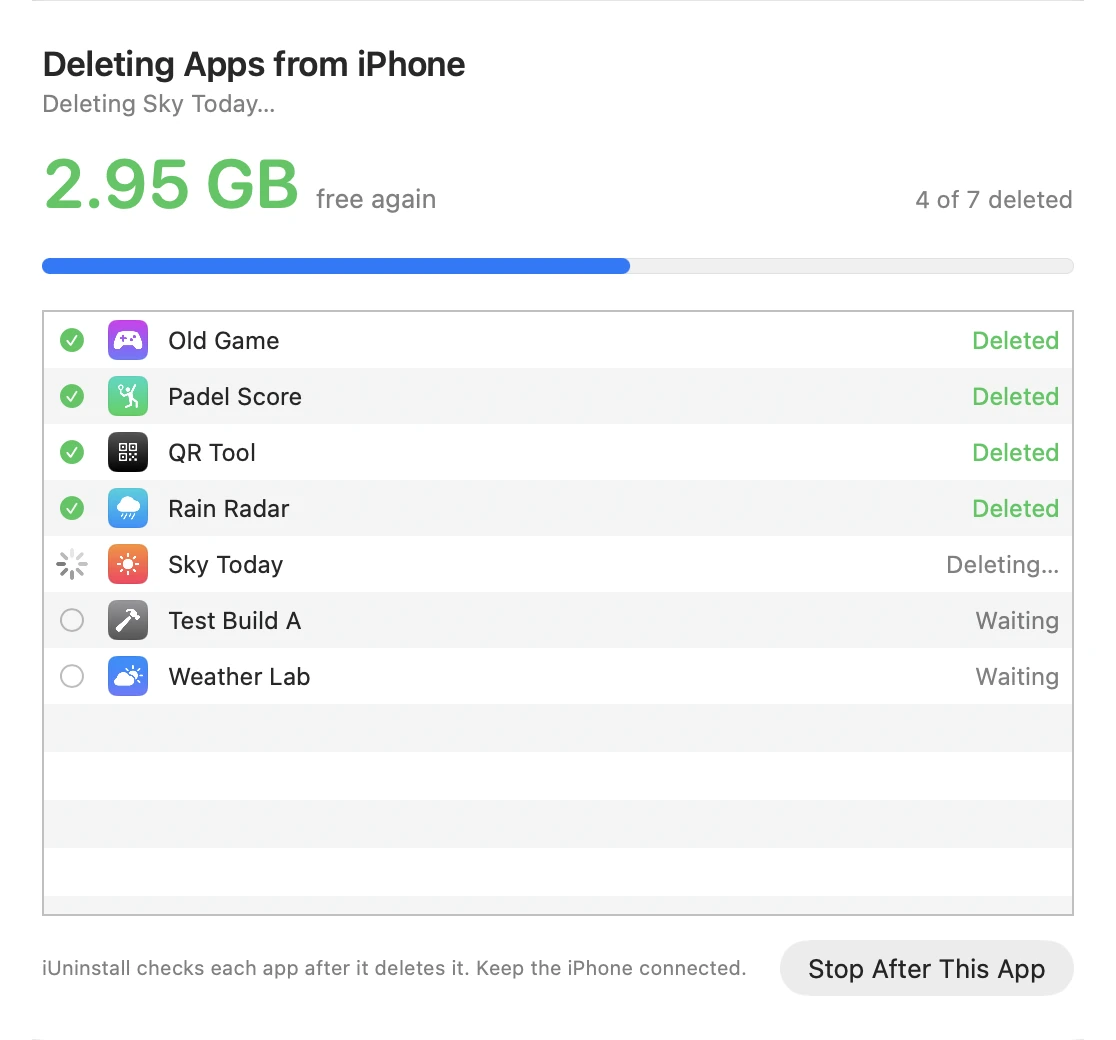
While the batch runs, you see each app change to "Deleted", and the total size of the deleted apps counts up. iUninstall checks the app list of the iPhone after each app, so "Deleted" means that the app is really gone. If you change your mind, click Stop After This App.
How to delete all apps on iPhone at once
To remove every app that you installed, without a reset of the iPhone:
- Mark the apps that must stay as protected, for example your bank, your messages, and your work apps. iUninstall never selects a protected app.
- Click Select All. The Delete button shows the number of apps.
- Click Delete, read the list, and confirm.
This does not erase your iPhone. Only the apps that you select, and their data on the iPhone, are deleted. Your photos, messages, and settings are not apps, so they stay. Built-in Apple apps are not in the list.
Most people do not want to delete every app. They want to delete the apps that they forgot. Use a filter, then Select All selects only the apps in that filter:
- Not opened in 7 days (30 or 90 days when iUninstall has more history): apps with no use in the Screen Time information that your iPhone shares.
- Large data: the apps that keep the most data.
- No update in 2 years and Not in App Store: old apps, with the optional App Store lookup.
Is "Erase All Content and Settings" the same?
No. Erase All Content and Settings deletes everything on the iPhone: your apps, photos, messages, and settings. Use it only when you give the iPhone away. To delete only apps, use iUninstall and keep the rest.
Why a batch is faster than deleting apps one by one
On the iPhone, each app needs three or four taps: touch and hold the app (or tap the minus in edit mode), tap Remove App, tap Delete App, then tap Delete (Apple iPhone User Guide). Then you must find the next icon. The iPhone has no Select All for apps. The more apps you remove, the more this adds up:
| Apps to delete | Taps on the iPhone | With iUninstall |
|---|---|---|
| 10 | 30–40 | Select 10 apps, confirm once |
| 20 | 60–80 | Select 20 apps, confirm once |
| 50 | 150–200 | Select 50 apps, confirm once |
| All | 3–4 for each app | Select All, confirm once |
With iUninstall, you also see what you delete. Each app shows its size and, on a Mac with Screen Time, when you last opened it. So you delete the right apps, not only the first icons you find.
What you need
- A Mac with macOS 15 Sequoia or later, or a Windows PC with Windows 10 (1809) or later, or Windows 11. On Windows, you also need the Apple Devices app from the Microsoft Store, or iTunes.
- Your iPhone and a USB cable.
- The iPhone must trust the computer. Tap Trust when the iPhone asks.
- Optional, on a Mac only: Screen Time sharing, to see when you last opened each app. See how to find unused apps.
The scan is free. On Windows, your first 2 deletions are also free. To delete more apps, you buy iUninstall one time for $9.99. See Pricing.
Can I delete multiple apps on the iPhone itself?
On the iPhone, you delete apps one at a time, and the iPhone asks you to confirm each app. You can also open Settings › General › iPhone Storage and delete one app at a time from that list (Apple Support). For a few apps, that is fine. For a big cleanup, a batch on your computer saves the repeated steps.
Read more: the quickest way to delete apps on iPhone and the most effective way to delete apps.
Frequently asked questions
Does deleting an app delete its data?
Yes. The app and its documents and settings on the iPhone go. Data in iCloud stays. You can get most apps again from the App Store, and the History in iUninstall keeps a link for each deleted app. The History does not restore the data of an app.
Does deleting an app cancel its subscription?
No. Deleting an app does not cancel its in-app subscriptions (Apple Support). To cancel, open Settings on the iPhone, tap your name, then tap Subscriptions (Apple Support).
Can I delete Apple's built-in apps?
iUninstall lists the apps that you installed. Built-in Apple apps are not in the list.
Is it safe?
iUninstall deletes only the apps that you select, and only after you confirm the list. You can mark apps as protected, so they are never selected. Read how iUninstall deletes and checks each app.
Keep reading
Is There a Way to Delete Apps on iPhone Quickly?
Yes. Delete many iPhone apps in one batch from your Mac or Windows PC, with one confirmation. Or delete one app in four taps on the iPhone.
The Most Effective Way to Delete Apps on iPhone
Five ways to delete iPhone apps, compared. For a real cleanup, iUninstall shows the size of each app (and the last use, on a Mac) and deletes them in one batch.
Offload vs Delete on iPhone: Which Frees More Storage?
Delete frees more storage than Offload, because it also removes the data. Delete the apps you do not use in one batch with iUninstall.